Trade Ticket
Stage and send orders against a live book.
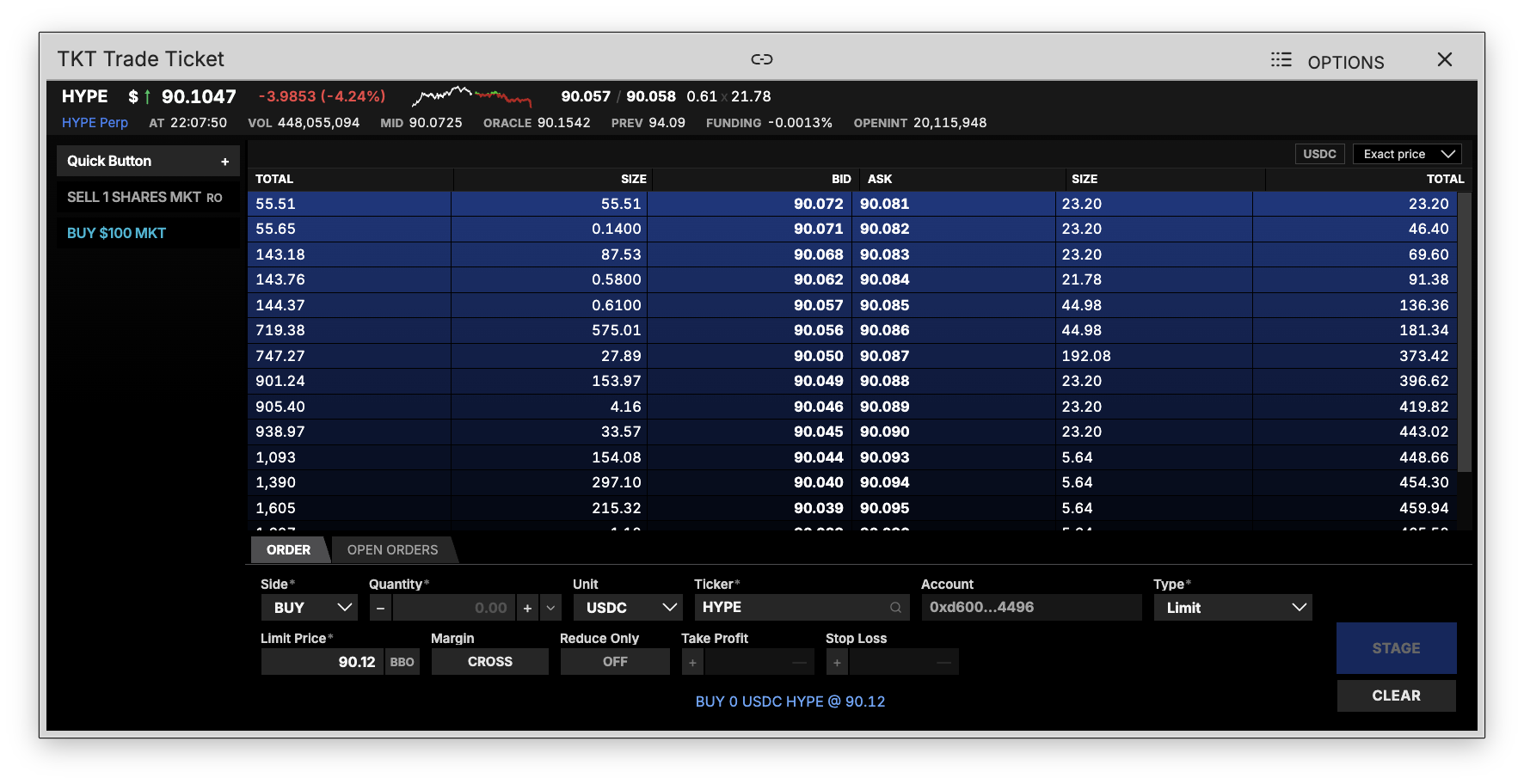
TKT is where you place trades: the live book on top, the order form underneath, and the instrument's quote across the header so everything you need to price an order is on one screen.
How to use TKT
Command: TKT
Type TKT in the terminal, then search for and select an asset to start trading.
The header
The strip across the top is the instrument: last price with the day's change, a sparkline, the inside bid and ask with their sizes, and then the session's figures — volume, mid, oracle price, previous close, funding rate and open interest.
The book
Bids and asks either side of the spread, each with size and a running total, so you can see what is resting where before you price an order. The two dropdowns set how it reads: the unit size is quoted in, and whether prices are grouped or exact.
The order form
The Order tab is the ticket itself:
- Side — buy or sell
- Quantity and Unit — size the order in the coin or in USDC
- Ticker and Account — what you are trading, and which account it goes to
- Type — market, limit, and the trigger types
- Limit Price — with BBO to snap to the best bid or offer
- Margin — cross or isolated
- Reduce Only — on, the order can only close, never open
- Take Profit and Stop Loss — attach either, or both, to the entry
The line under the form reads back the order you have built, in words, before it goes anywhere. Stage sends it; Clear empties the form.
Open Orders sits beside the Order tab, listing what you already have working on this instrument.
Quick buttons
The panel on the left holds one-click orders you have saved — a fixed size, a side and an order type, fired in a single click. The + adds one.