World Clock
Track market hours across global timezones at a glance.
TIMEZONE shows a live world clock for the locations you're tracking, with an at-a-glance indicator for whether each market is currently open.
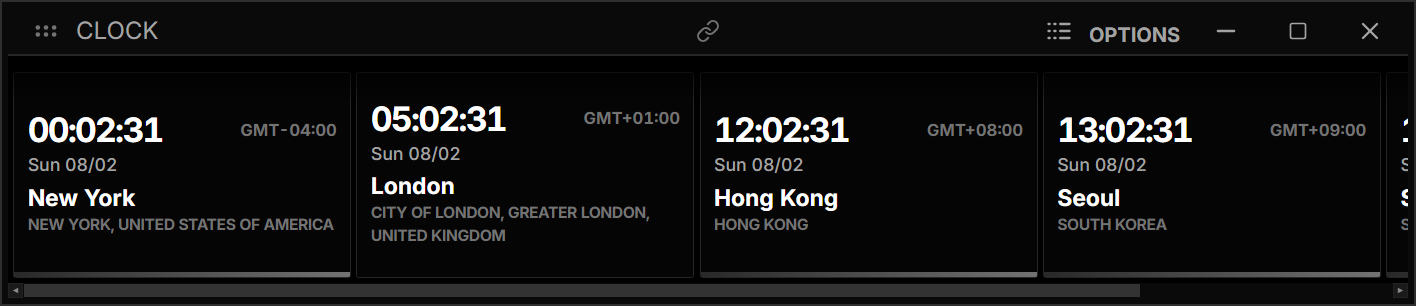
How to use TIMEZONE
Command: TIMEZONE
Type TIMEZONE in the terminal to open the world clock. By default it loads New York, London, and Hong Kong — click Add Location to search for and add more.
Reading the market status bar
Each location card has a thin bar along the bottom that tells you the market status for that timezone at a glance:
- Blue gradient — the market for that location is currently open.
- Gray gradient — the market is currently closed (after hours, weekend, or holiday).
- No bar — market hours aren't tracked for that location yet.
Supported markets & hours
| Timezone | Region | Regular Hours (Local) |
|---|---|---|
| America/New_York | New York (NYSE/Nasdaq) | 09:30 – 16:00 |
| Asia/Seoul | Seoul (KRX) | 09:00 – 15:30 |
| Asia/Tokyo | Tokyo (TSE) | 09:00 – 15:00 |
| Asia/Hong_Kong | Hong Kong (HKEX) | 09:30 – 16:00 |
| Asia/Shanghai | Shanghai (SSE) | 09:30 – 15:00 |
Holidays & early closes
Each supported market also accounts for its own holiday calendar, including full closures and early-close (half) days — for example, U.S. markets close early the day after Thanksgiving and on Christmas Eve, while Hong Kong closes early on Lunar New Year's Eve. On these days, the status bar reflects the adjusted hours automatically.
Adding a location
Hover near the top of the clock and click Add Location, then search for a city. Locations you add are saved automatically and will persist the next time you open TIMEZONE.